

Connecting to Infor HMS
Import data
Overview
Infor HMS creates full industry suites in the cloud and deploys technology that prioritizes the user experience, leverages data science, and integrates easily into existing systems. You can use skyStudio’s built-in connector for importing data from Infor HMS. This document will guide you through the process of connecting Infor HMS to skyStudio.Prerequisite
You will need the following details to configure and import data using Infor HMS:- Display Name
- Account Key
- Storage Path.
You can refer to the Infor HMS Setup Guide document to learn more about the Prerequisites.
To import data using Infor HMS connector
Follow the below steps to create a new dataflow for the Infor HMS import connector:- Go to Dataflow > Imports.
- Click New dataflow.
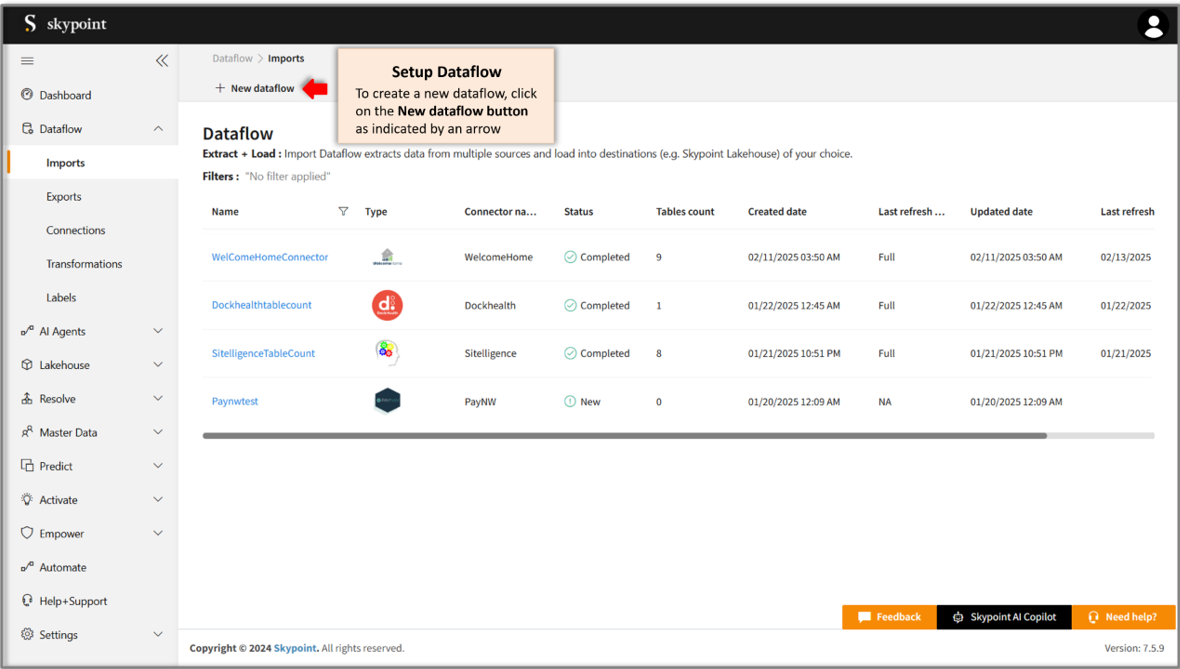
- In the Set dataflow name page, type dataflow name in Name text area.
- Click Next.
To add Infor HMS connector
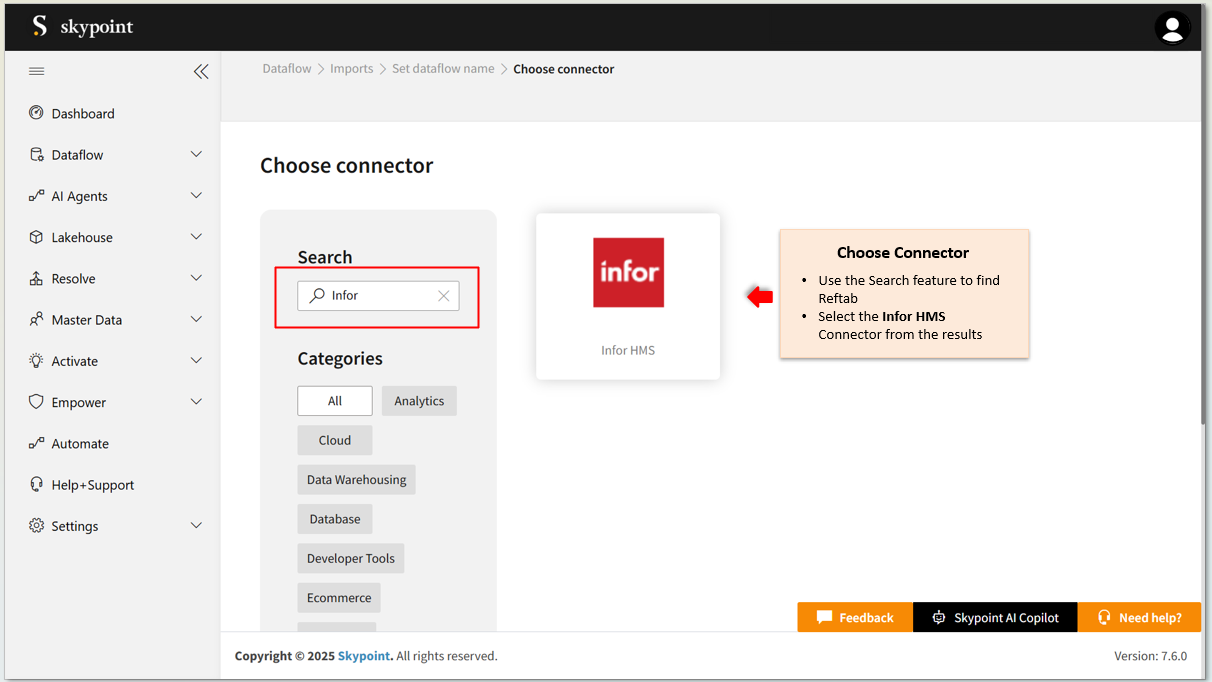
- In the Choose connector page, select Infor HMS connector.
Use the Search function to locate the connector. You’ll find the Infor HMS connector under the Healthcare category.
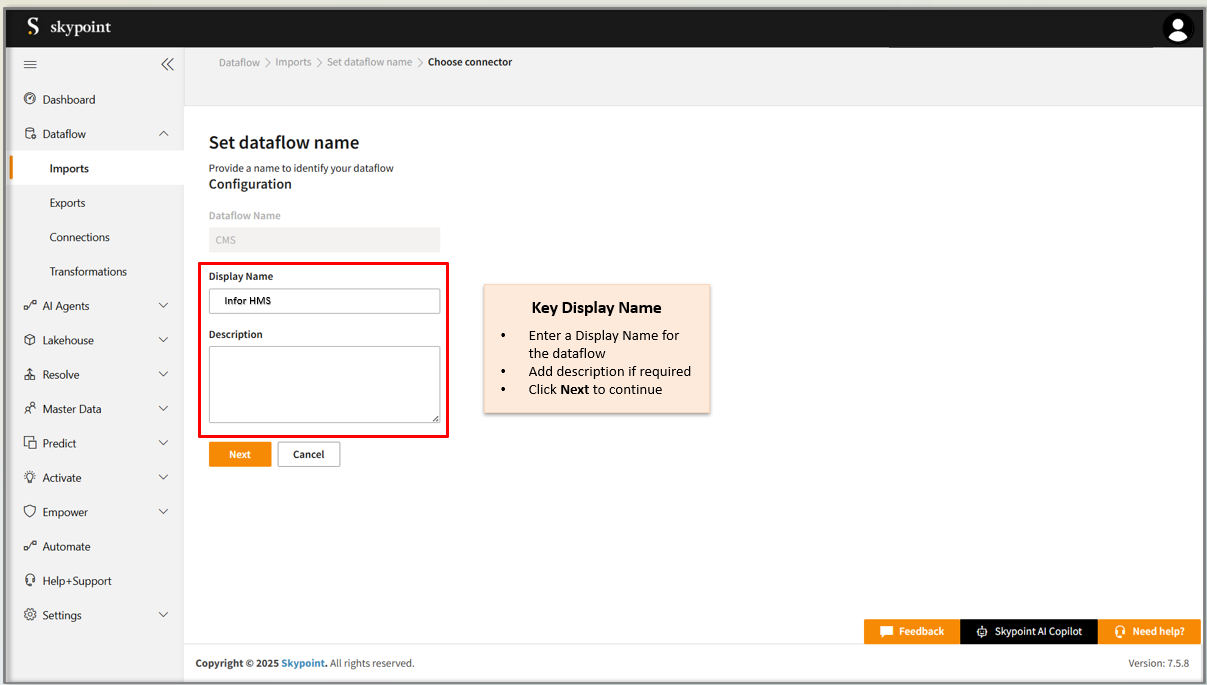
- Enter Display Name for your dataflow in the text area.
- Enter Description for your dataflow in the text area.
- Click Next.
To configure Infor HMS
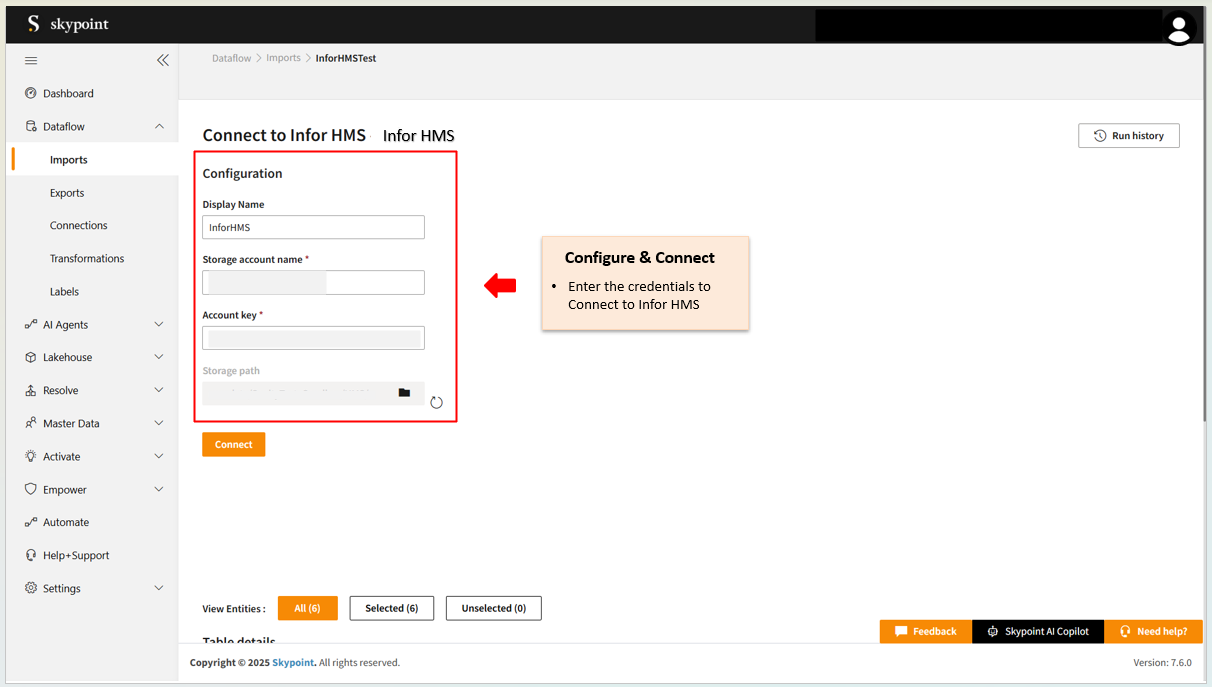
Follow the below steps to configure the connection to Infor HMS:- Enter Display account name in the text area.
- Enter Account key in the text area.
- Click the Folder icon in Storage path text area.
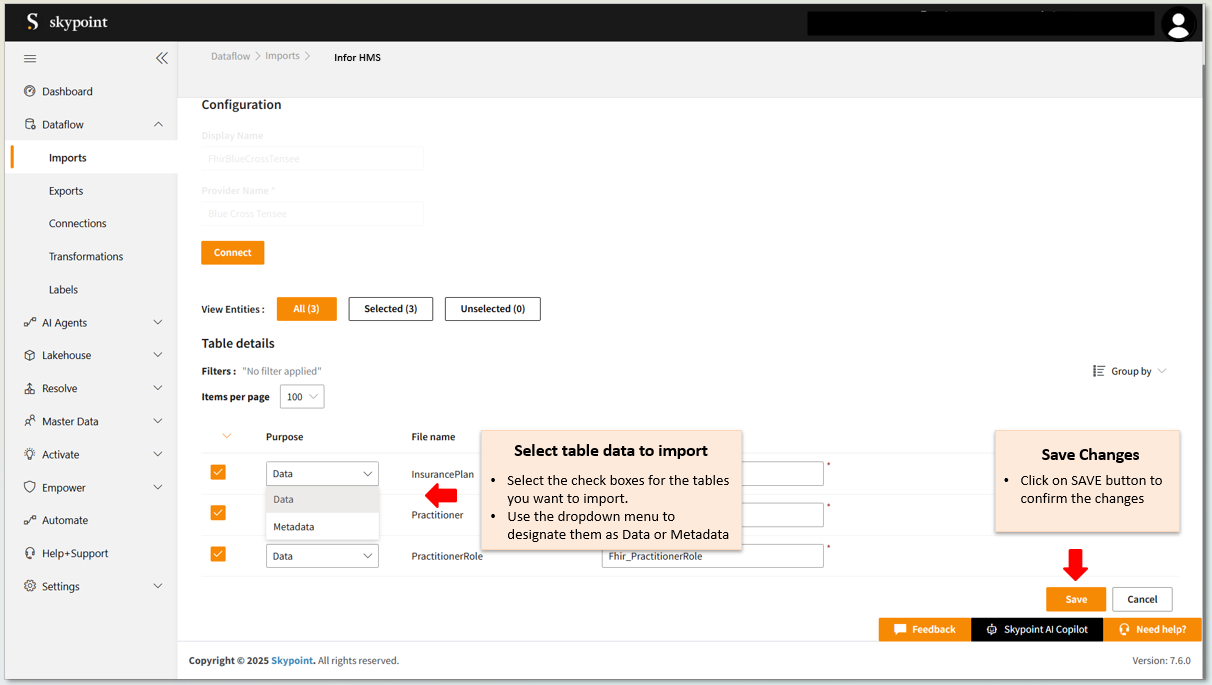
- Enter the Table Details to process the data.
| Item | Description |
|---|---|
| Purpose | Option to assign a purpose (Data or Metadata) for each table. |
| Data | Load customer data. |
| Metadata | Load Metadata. |
| File Name | Displays the name of the file that you imported. |
| Table Name | Displays the imported table name. |
- Click Save.
Run, edit, and delete the imported data
Once you save the connector, the Infor HMS connector gets displayed in the list of tables created in the Dataflow page.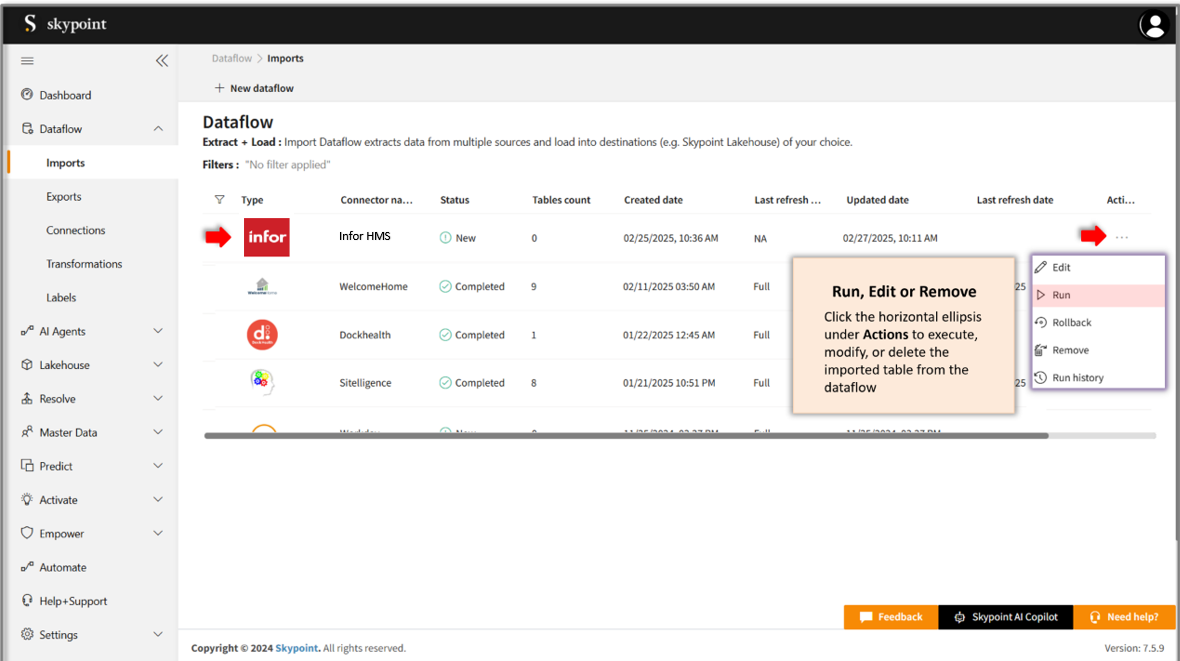
| Item | Description |
|---|---|
| Name | Displays the name of the imported Dataflow. |
| Type | Displays connector type symbol. |
| Status | Indicates whether the data is imported successfully. |
| Tables Count | Displays the number of tables. |
| Created Date | Displays date of creation. |
| Last refresh type | Displays the refresh value. You can see whether the value is Full or Incremental after the last data refresh. |
| Updated Date | Displays last modified date. |
| Last Refresh | Displays the latest refresh date, which updates each time the data is refreshed. |
| Group by | Option to view the items in a specific Group (For example, name, type, status). |
- Select the horizontal ellipsis in the Actions column and do the following:
| If you want to | Then |
|---|---|
| Modify the Dataflow | Select Edit and modify the Dataflow. Click Save to apply your changes. |
| Execute the Dataflow | Select Run. |
| Bring the data to its previous state | Select Rollback. |
| Delete the Dataflow | Select Remove and then click the Delete button. All tables in the data source get deleted. |
| See the run history of the Dataflow | Select Run history. |
Setup guide
Overview
This document will help you gather all credentials for connecting Infor HMS with skyStudio.Prerequisite
You must have the following details:- Infor HMS account
- API for integration.
To call API
skyStudio will expose API for the following five entities:- Reservations
- GuestProfile
- Inventory
- Rate
- GuestStayRevenue
Finding Storage account
The Storage account name will be shared with you from skyStudio.Finding Account key
The Account key will be shared with you from skyStudio.Selecting Storage Path
Follow the below steps on the skyStudio platform Configuration page to select Storage Path:- Click the folder icon in Storage Path text area.
- Select raw-data and then select the folder inside it.
- Select HMS.
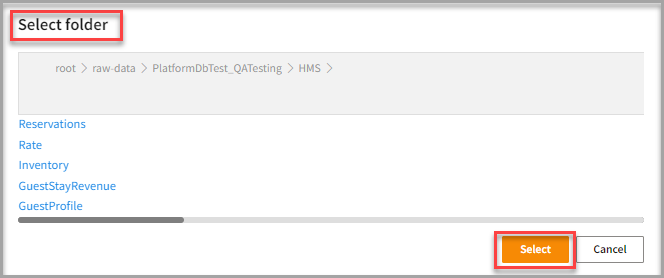
- In the HMS folder, click Select.
Follow the steps in Connecting to Infor HMS import connector to complete your integration.