

Imports
Overview
Dataflow allows you to import data from the relevant sources, transform, and load it into the Lakehouse. skyStudio imports raw customer data from across systems and applications with over 200 connectors spanning e-commerce platforms, marketing automation tools, email service providers, cloud platforms, and many more. You can ingest data to skyStudio from any data source including pre-built connectors with popular applications such as Shopify, Salesforce, etc. skyStudio Studio ingests raw data and transforms it into a standardized, modular, and extensible collection of data schemas for further processing in downstream processes such as Master Data Management (MDM) - Resolve process.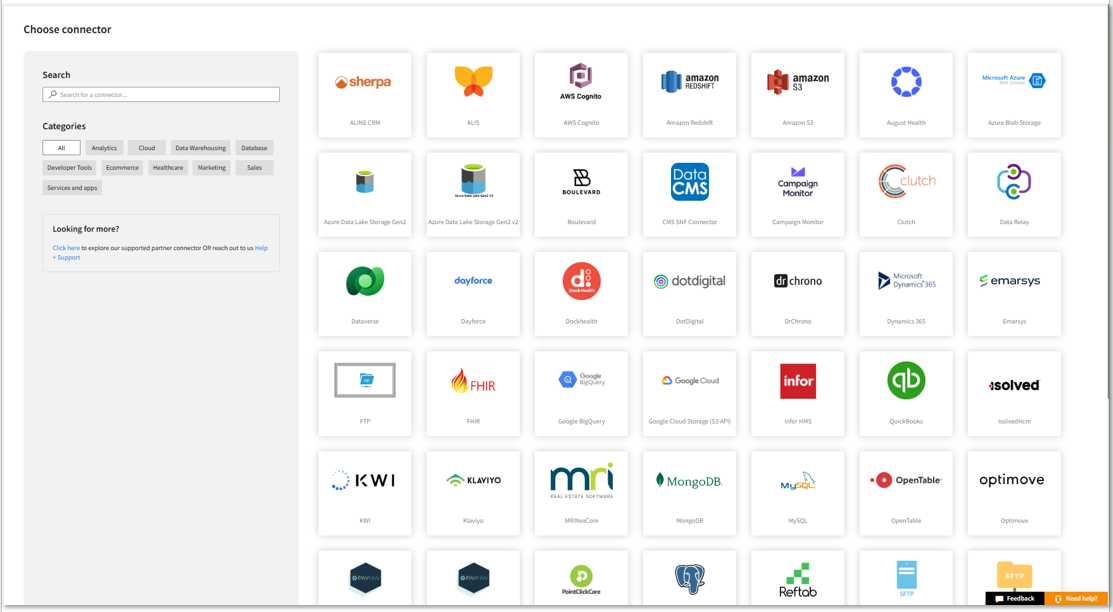
To add new Dataflow
- In the left pane, go to Dataflow > Imports.

- Click New Dataflow to create dataflow.
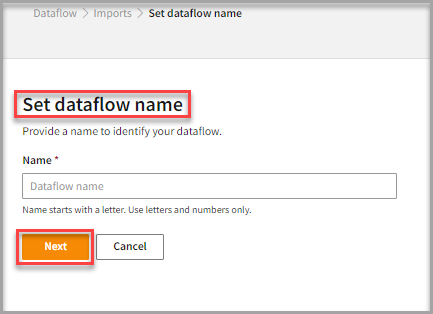
- Enter a Name to identify your Dataflow.
The name must start with a letter and can only contain letters and numbers, with no spaces between the characters.
- Click Next.
Add connectors
- Choose one of the existing Connectors to access the data.
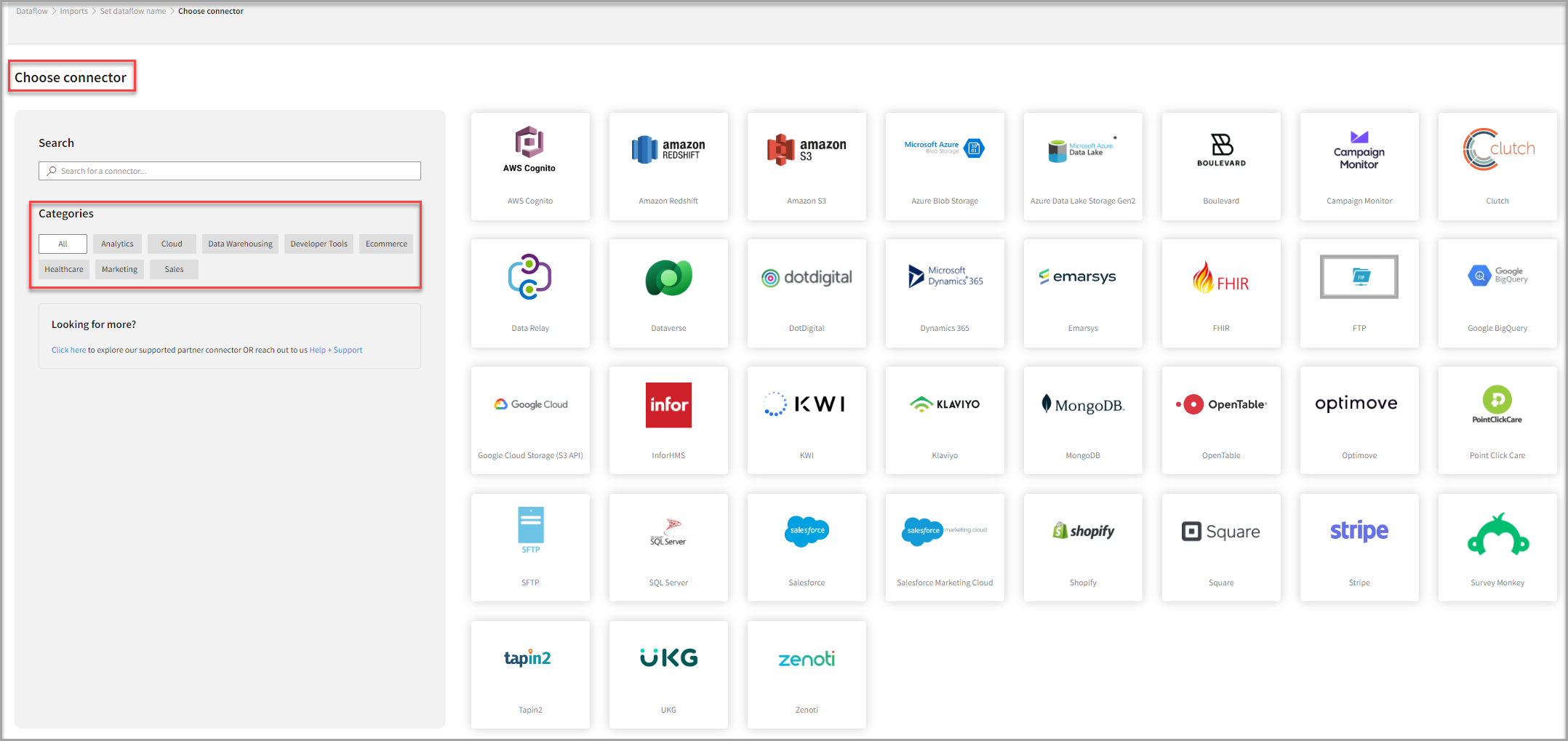
Connectors categorization
You can filter the list of connectors concerning the following categories:| Connector type | Description |
|---|---|
| All Categories | Displays all types of connectors that are available on the skyStudio platform. |
| Analytics | You can simplify big data and run parallel data transformation and processing programs. These connectors enable you to connect with analytics-based connectors. |
| Cloud | The Cloud connector is used to integrate with cloud providers. |
| Data Warehousing | You can connect to the data management system that is designed to enable and support Business Intelligence (BI) activities. These connectors enable you to import data from data warehouses. |
| Developer Tools | This is a set of services and features that connect you to develop a software application. |
| Ecommerce | These connectors allow you to integrate with various eCommerce platforms and marketplaces for data exchange. |
| Healthcare | These connectors allow you to connect with a health organization or insurer. Also, you can exchange Electronic Health Records (EHR). |
| Marketing | You can import marketing data into skyStudio Lakehouse to gain new business insights. Marketing connectors synchronize data between a marketing environment and the skyStudio platform. |
| Sales | You can import data with Sales connectors to build relationships and increase your sales. |
- You can use the search function to find the available connectors. For more information about different type of connectors and their configuration, refer to the Connector section.
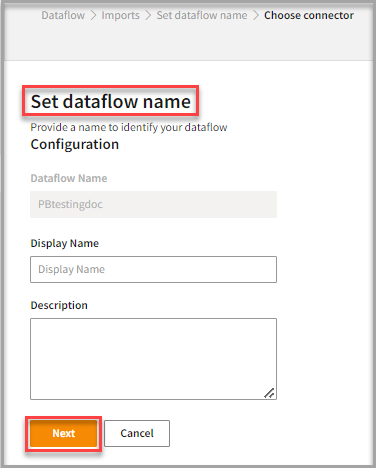
- Enter the Display Name and the Description of the connector.
- Click Next.
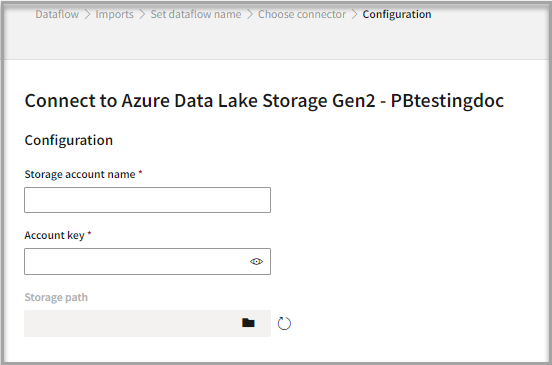
- Enter the account credentials to configure with the selected connector.
- If you want to keep the same date-time format for all the tables, select the check box.
- Click Save
- Select the Table Details to process the data.
After configuration, all tables that are part of the connector are listed in the Table Details. By default, it displays a single table upon successful connection, showing information specific to the client connector and the tables it supports. For multiple tables, you can select only those tables you want to import and process. For example, to import customer data, choose the tables that contain customer information such as name, email, address, and contact details.
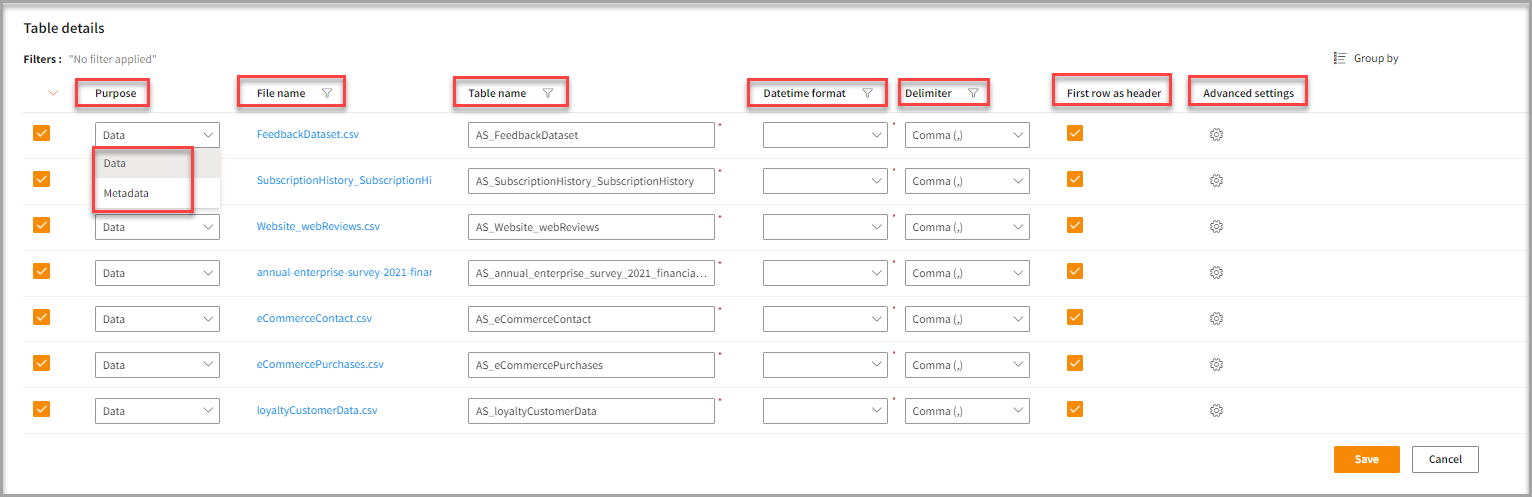
| Item | Description |
|---|---|
| Purpose | Option to assign a purpose (Data or Metadata) for each table. |
| Data | Load customer data |
| Metadata | Load Metadata |
| File name | Indicates file extension and the name of the file that you imported. |
| Table name | Displays the imported table name by default. You can rename it later as required. |
| Datetime format | Option to select the Datetime data in a different format. |
| Delimiter | Indicates characters that separate text strings. |
| First row as header | Indicates the first row of data as a header. |
You can select the Datetime in MM/DD/YYYY format, for example, 11/25/1979. It helps the system to understand the data format and apply further formatting if required during downstream processes. The same Datetime format as set in the instance settings can be seen for the Datetime fields in the profile card. If you wish to see the profile card with Datetime as imported from the source, you can unselect the option in Stitch > Map > advanced settings.
- If necessary, apply the Advance settings to modify the default settings.
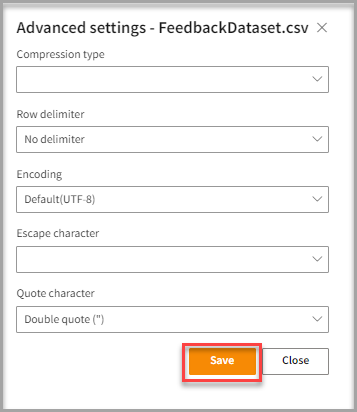
Advanced settings allow you to modify the default settings. It gives more flexibility to apply advanced use cases. However, the default settings are adequate to perform the task.
| If you want to | Then |
|---|---|
| Modify data types such as fixed or variable data types. | Select from the Compression type. It allows you to reduce the size of data by removing the number of bits. |
| Change the delimiter | Click Row delimiter. By default, a column delimiter is selected, and each row is separated with a comma. |
| Change information or instruction | Choose from the Encoding list. By default, UTF-8 encoding is selected. |
| Modify the escape character such as backslash (\) or slash (/) | Select from the Escape character. |
| Apply different quote characters such as Single quote (’) or Double quote (”). | Select from the Quote character. |
- Click Save to apply the changes.
Run, edit, and delete the imported data
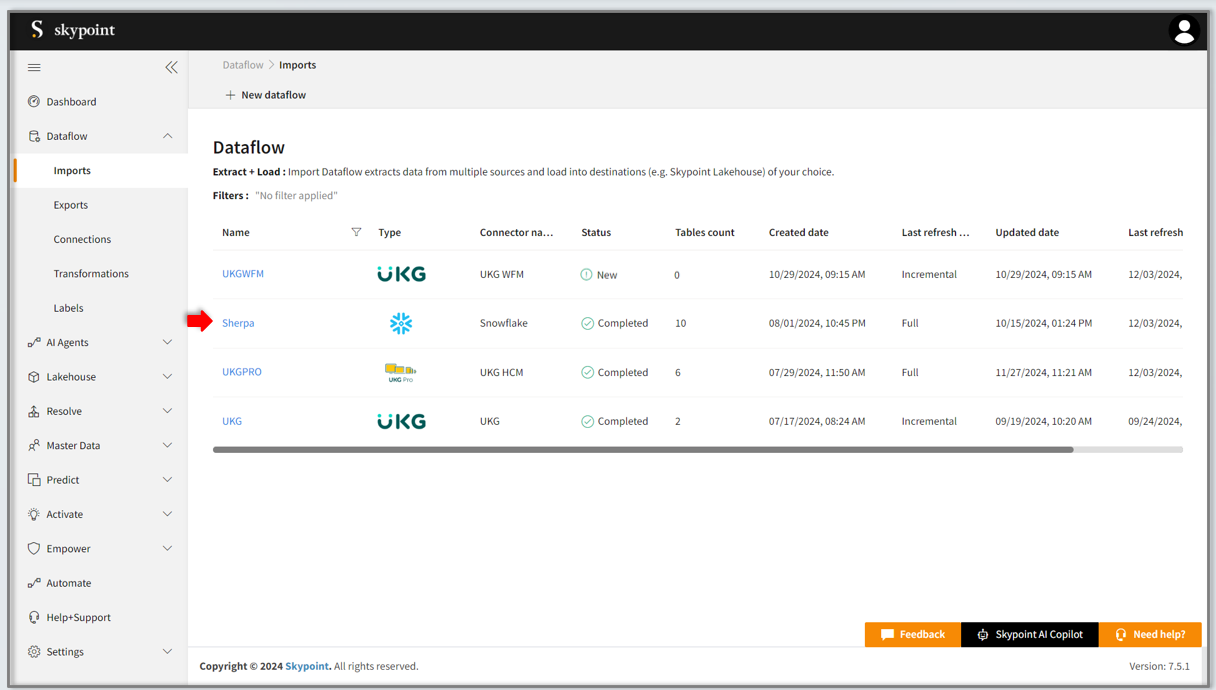
- After saving the connection, imported data appears on the Dataflow page. Also, you can see a list of the created tables in the Databases section.
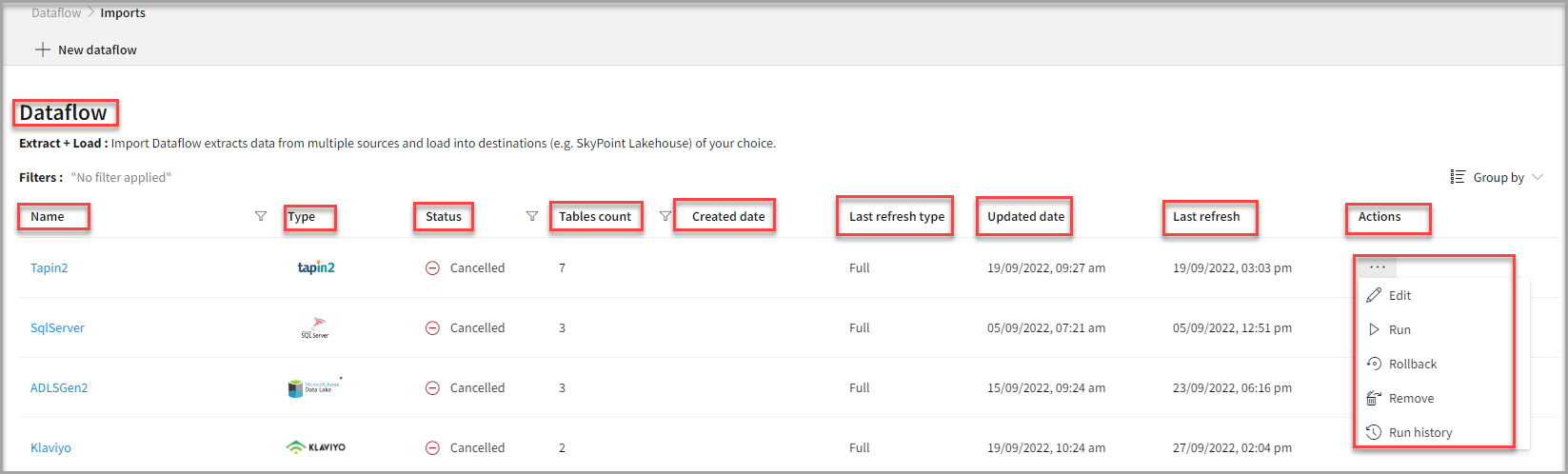
| Item | Description |
|---|---|
| Name | Displays the name of the imported Dataflow. |
| Type | Displays connector type symbol. |
| Status | Indicates whether the data is imported successfully. |
| Tables Count | Displays the number of tables. |
| Created Date | Displays date of creation. |
| Last refresh type | Displays the refresh value. After the last data refresh, it will indicate whether the value is Full or Incremental. |
| Updated Date | Displays last modified date. |
| Last Refresh | Displays the latest refresh date, which updates each time you refresh the data. |
| Group by | Option to view the items in a specific Group (For example, name, type, status). |
- Select the horizontal ellipsis in the Actions column and do the following:
| If you want to | Then |
|---|---|
| Modify the Dataflow | Select Edit and modify the Dataflow. Click Save to apply your changes. |
| Execute the Dataflow | Select Run. |
| Bring the data to its previous state | Select Rollback. |
| Delete the Dataflow | Select Remove and then click the Delete button. All tables in the data source get deleted. |
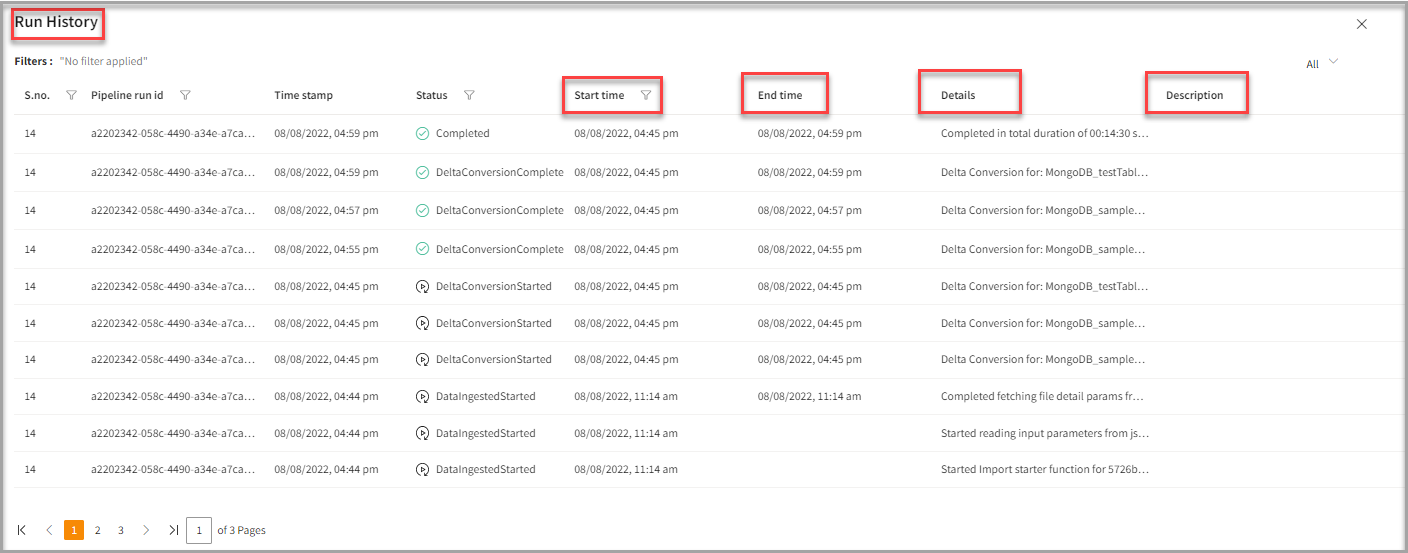
| See the run history of the Dataflow | Select Run history. Run history for Dataflow imports is available for the last three runs. |
The Run history for SQL connector import in Dataflow shows all the states for ingestion and the completion time reflects the complete time for the pipeline completion. Also, you can see the error message corresponding to failure while importing data from a data source under Description.
To configure Email Notification for pipeline status
Now you can set up email notifications to stay informed about pipeline success or failure events in real time. Follow these steps to configure notifications.- Click on the Pipeline name for which you want to configure notifications.
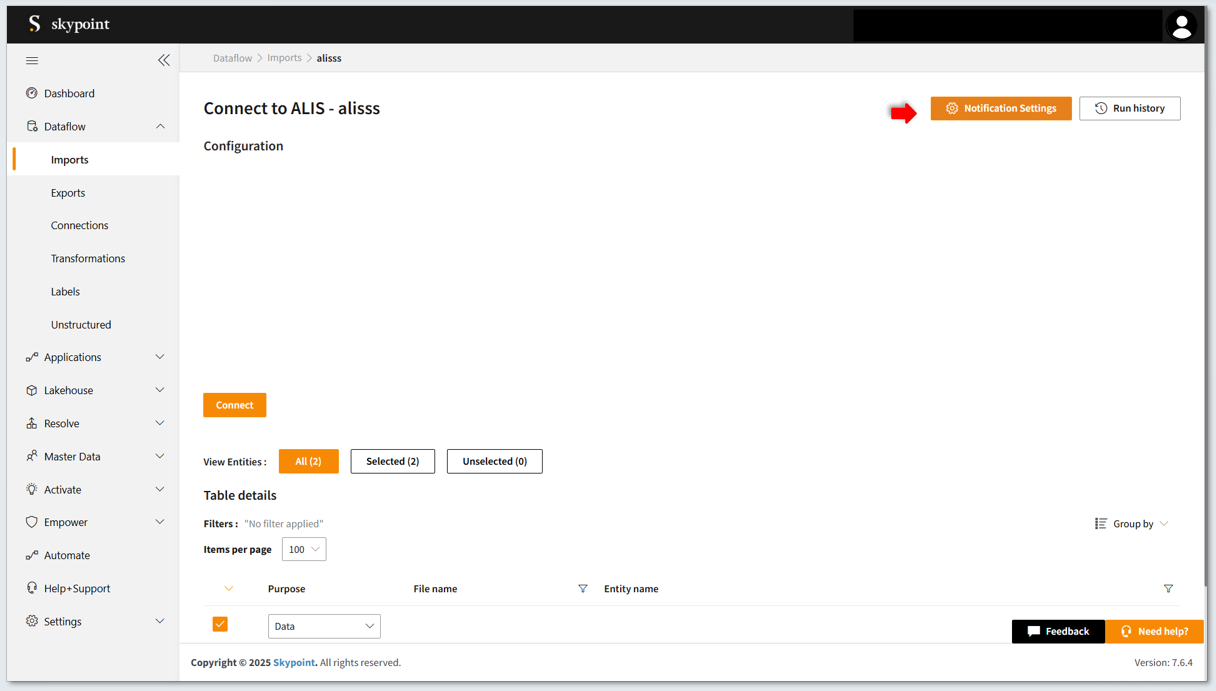
- Click Notification Settings on the right corner of the screen.
- Notification settings form appears, check the box Enable Notifications to proceed.
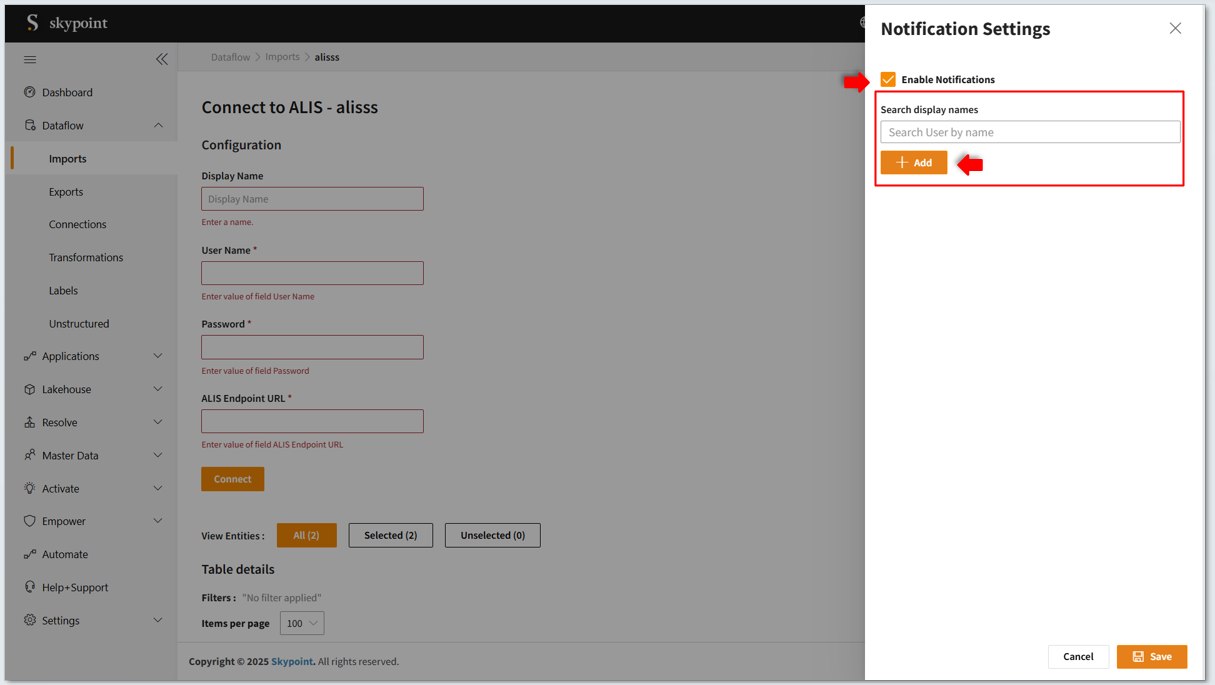
- Enter the mail id to Add user.
- Click on the Add button to add multiple users.
- Access the Manage User option to configure notifications for pipeline completion of statuses of success, failure, or both.
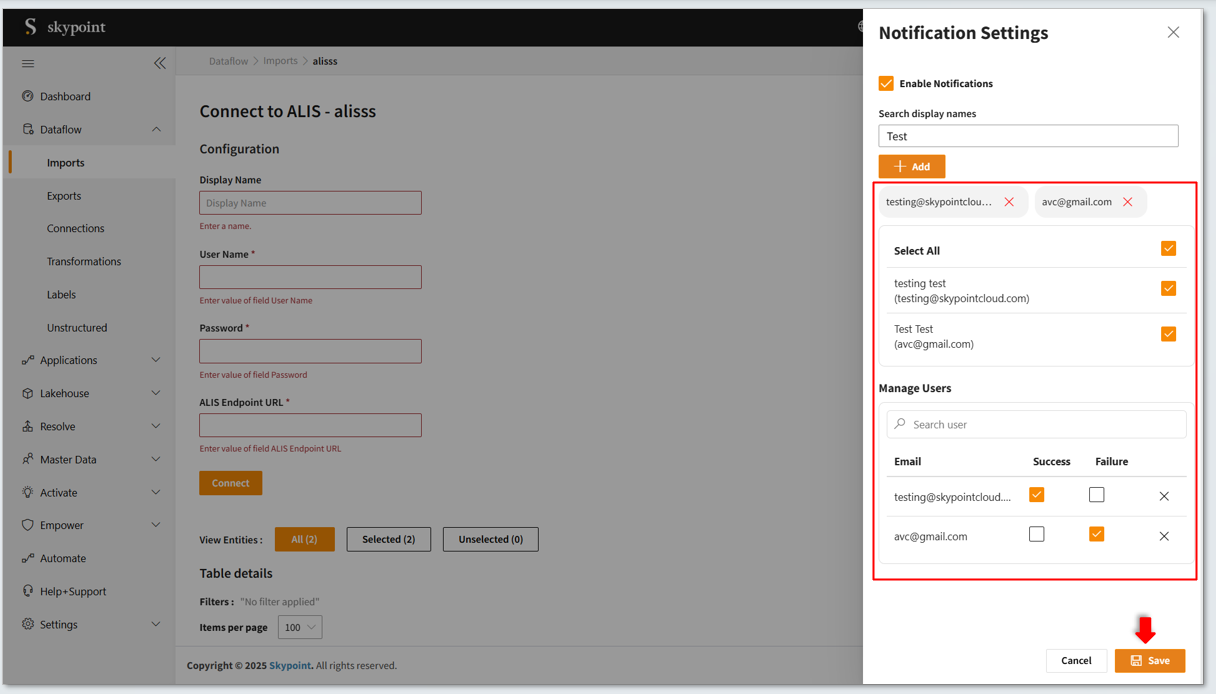
- Click Save to apply for changes.
- User will get the mail notification based on the configuration, such as Sucess/Failure or Both.
Notifications set for a specific connector are limited to that connector only. You won’t receive updates for other connectors unless configured separately.
- Follow the same steps to configure notifications for other pipelines.
Get assistance for your connector
In case, you are unable to find your desired import connector, you can perform one of the action in the Looking for more section. You can raise a support ticket for the Skypoint team to look into your request.List of all import connectors
- Alis
- August Health
- AWS Cognito
- Amazon Redshift
- Amazon S3
- Azure Synapse Analytics
- Microsoft Azure Blob Storage
- Microsoft Azure Data Lake
- Boulevard
- Campaign Monitor
- CMS SNF
- Dataverse
- Dayforce
- DockHealth
- Dotdigital
- Dr Chrono
- Microsoft Dynamics 365
- FHIR
- Google Cloud Storage
- Infor HMS
- iSolved
- KWI
- Klaviyo
- MRINexcore
- MySQL
- NetSuite
- PayNW
- PayNW Reports
- PointClickCare
- Reftab
- SFTP
- Salesforce
- Salesforce Marketing Cloud
- SharePoint
- Shopify
- Sitelligence
- Snowflake
- SQL Server
- Square
- Stripe
- UKG PRO
- UKG WFM
- WelcomeHome
- Workday
- Workday Raas
- Zenoti