

Using skyStudio
Overview
skyStudio uses generative AI to make the most of your data. Skypoint’s AI Studio enhances data management by efficiently collecting, unifying and organizing data from a variety of sources, including SQL databases, APIs or files like CSV, PDF, text, docs to uncover valuable insights. These insights are easily accessible through skyStudio copilot, which enables users to chat with data in simple language leading to data-driven decision-making capabilities & more.How to enable skyStudio
To activate skyStudio for instance data, follow these steps to enable its functionality:- Log in to the skyStudio Studio portal.
- Go to Settings and select Instances from the dropdown menu.
- Click on the Settings tab.
- Tick the box labeled Enable skyStudio for instance data, then click the SAVE button to activate skyStudio.

After activation, skyStudio’s functionality for instance data cannot be deactivated. If not activated or enabled, skyStudio will operate according to the current setup.
Learn how to configure both structured and unstructured data in skyStudio Studio:
How to use skyStudio Copilot
Visit the skyStudio Copilot portal at: https://copilot.skypoint.ai to login with your credentials: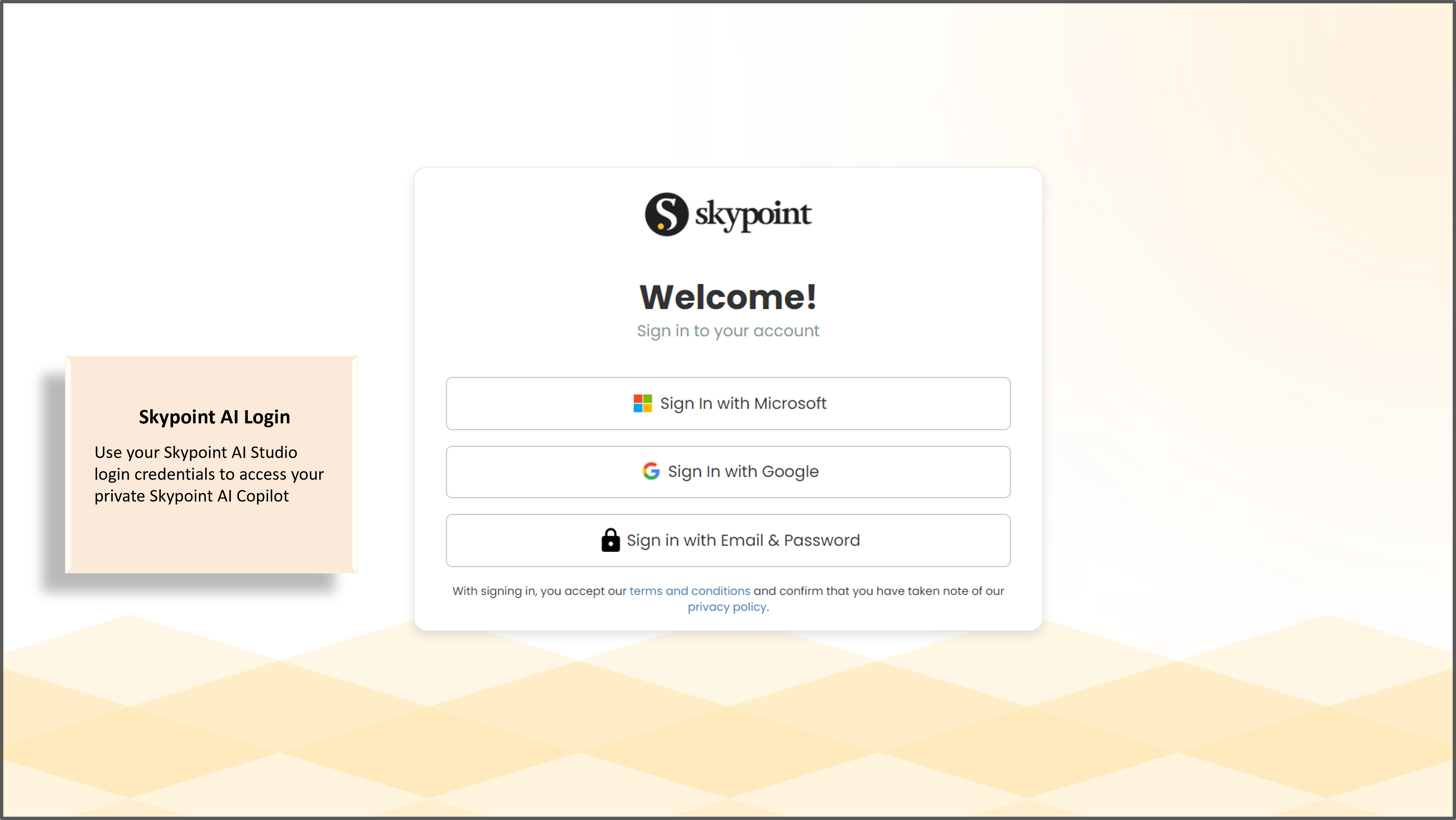
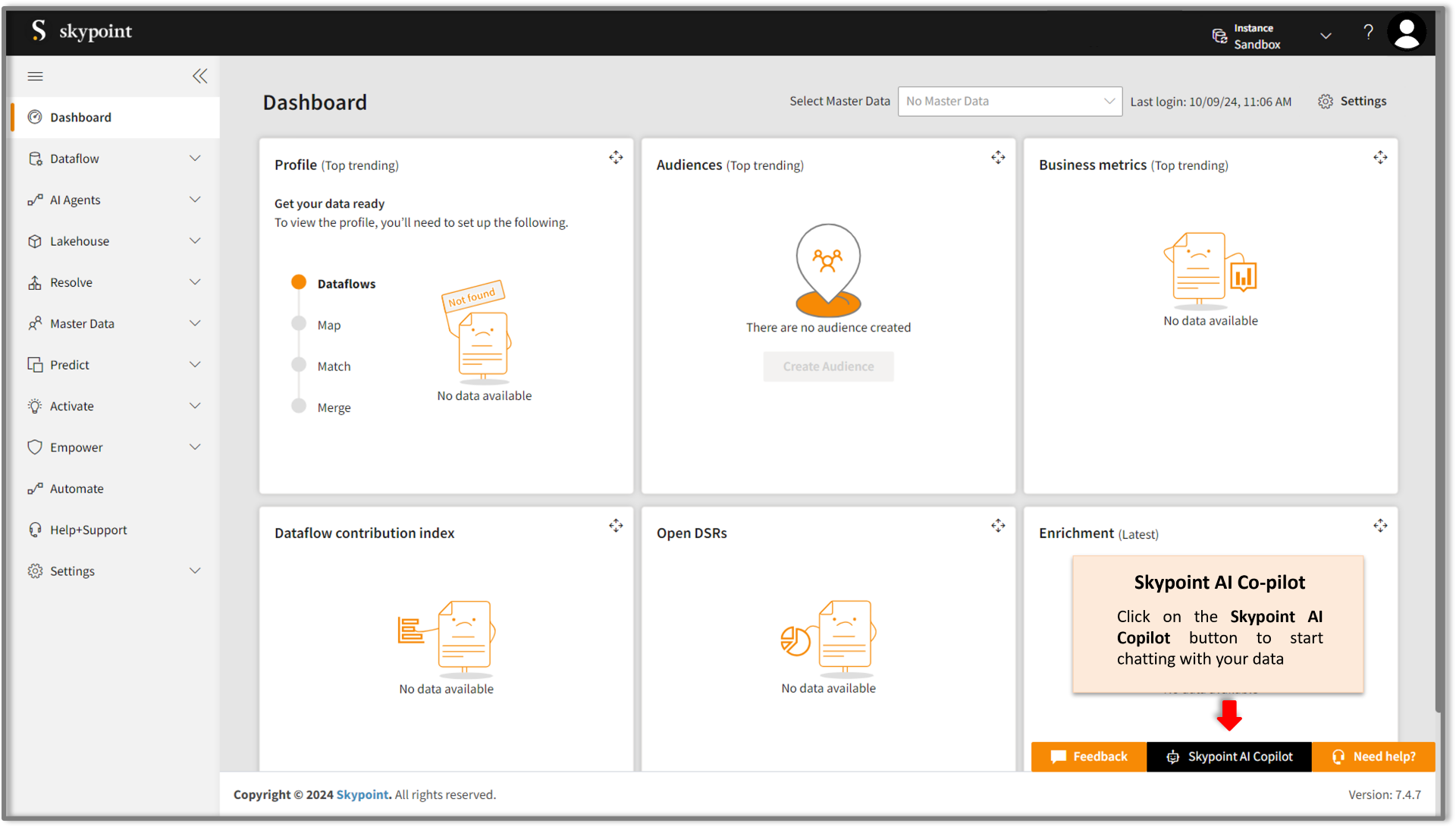
How to ask your questions?

- Phrase and state your queries concisely & clearly in the prompt field for best response from skyStudio Copilot.
- Click Enter and wait for skyStudio Copilot to respond. Response time varies from a few seconds or longer based on request complexity.
- View Copilot’s response in the chat window above the prompt field.
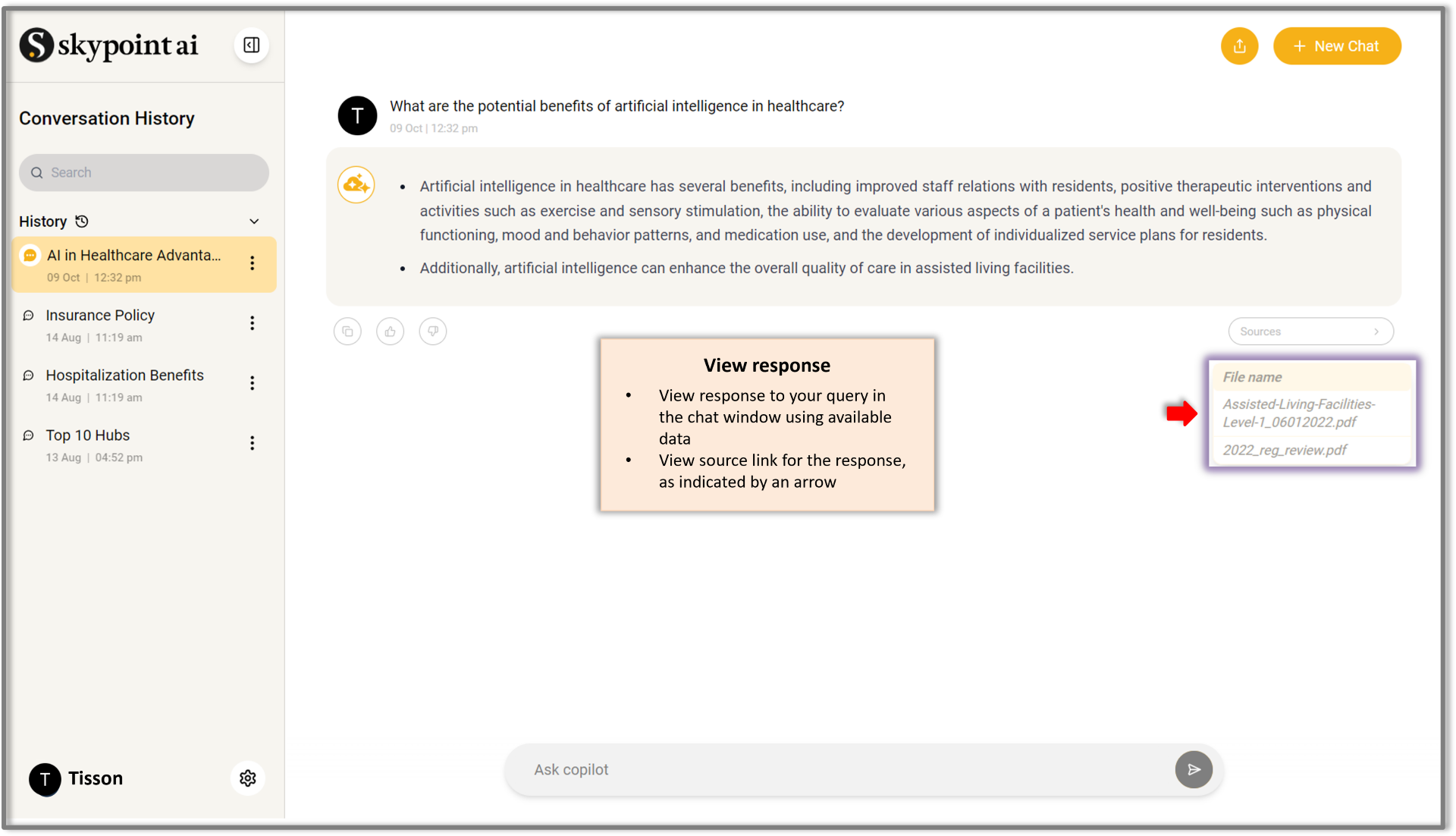
- For the General Knowledge agent, responses are streamed in real time, and you’ll see the answer unfold as it’s being generated. This ensures quicker answers, a smoother conversational flow, and immediate access to insights.
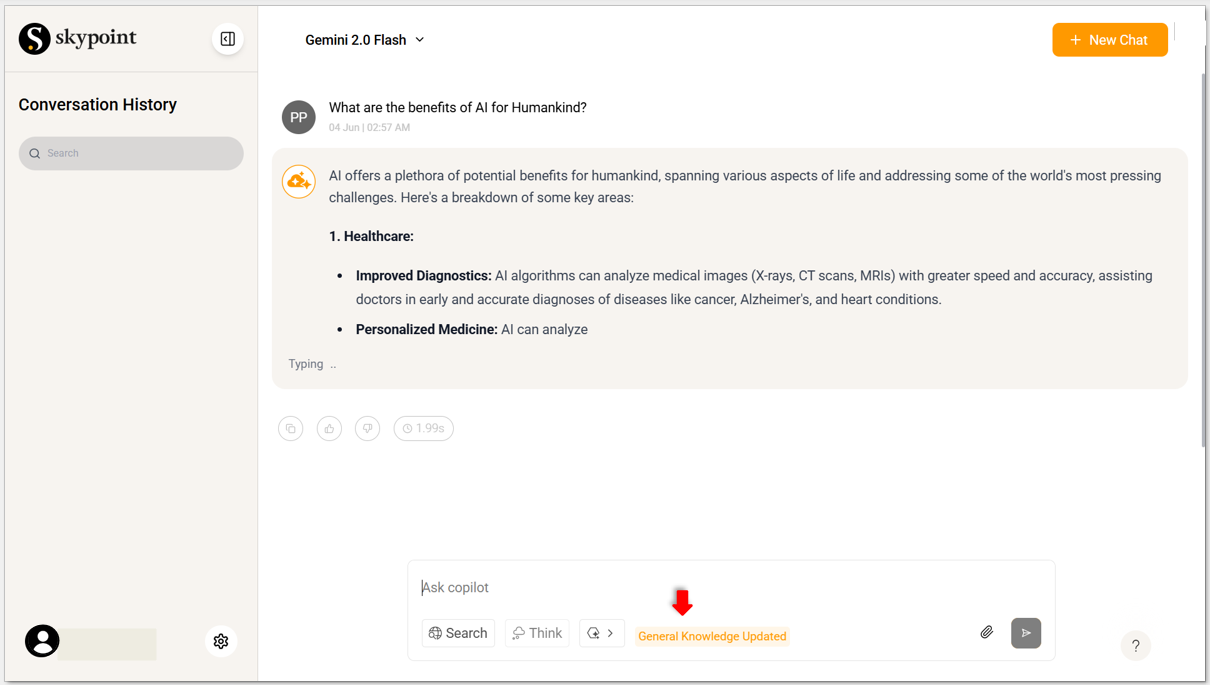
- If the response doesn’t fully address your question, add more context or clarification, and Copilot will refine its answer.
- Repeat Step 3 as needed until you get a satisfactory response.
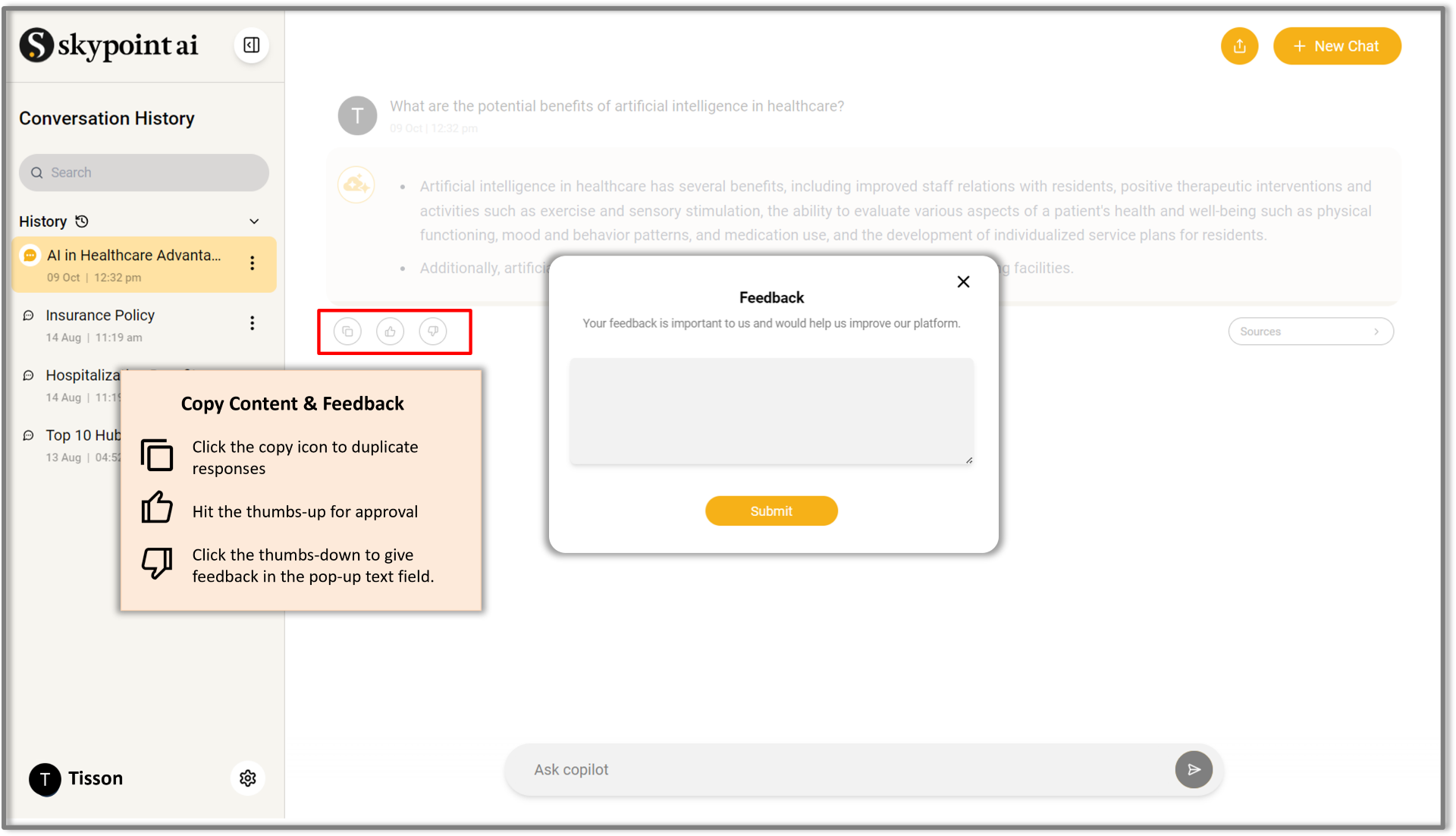
How can you copy conversation and provide feedback?
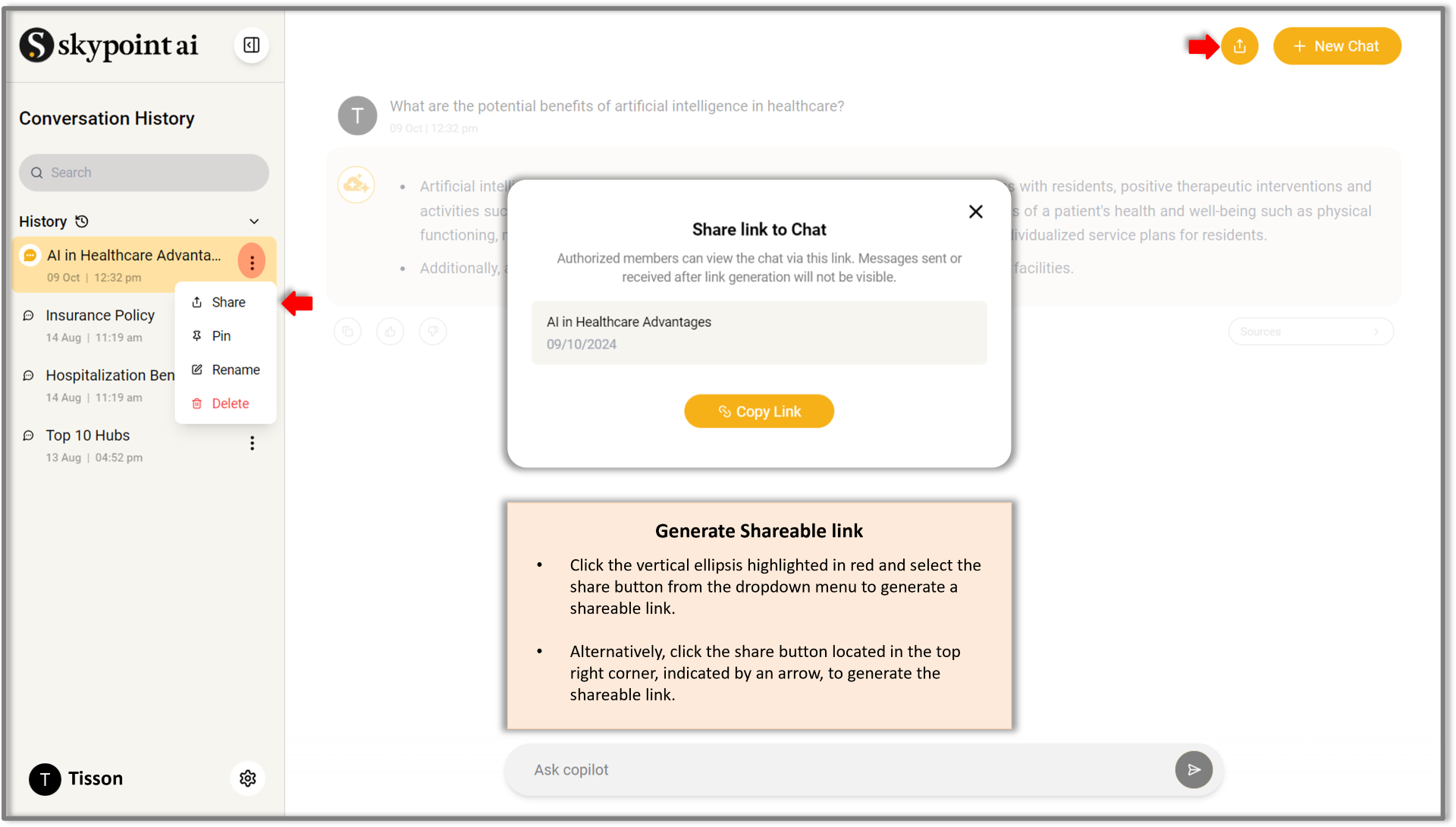
How can you generate link to share conversation thread?
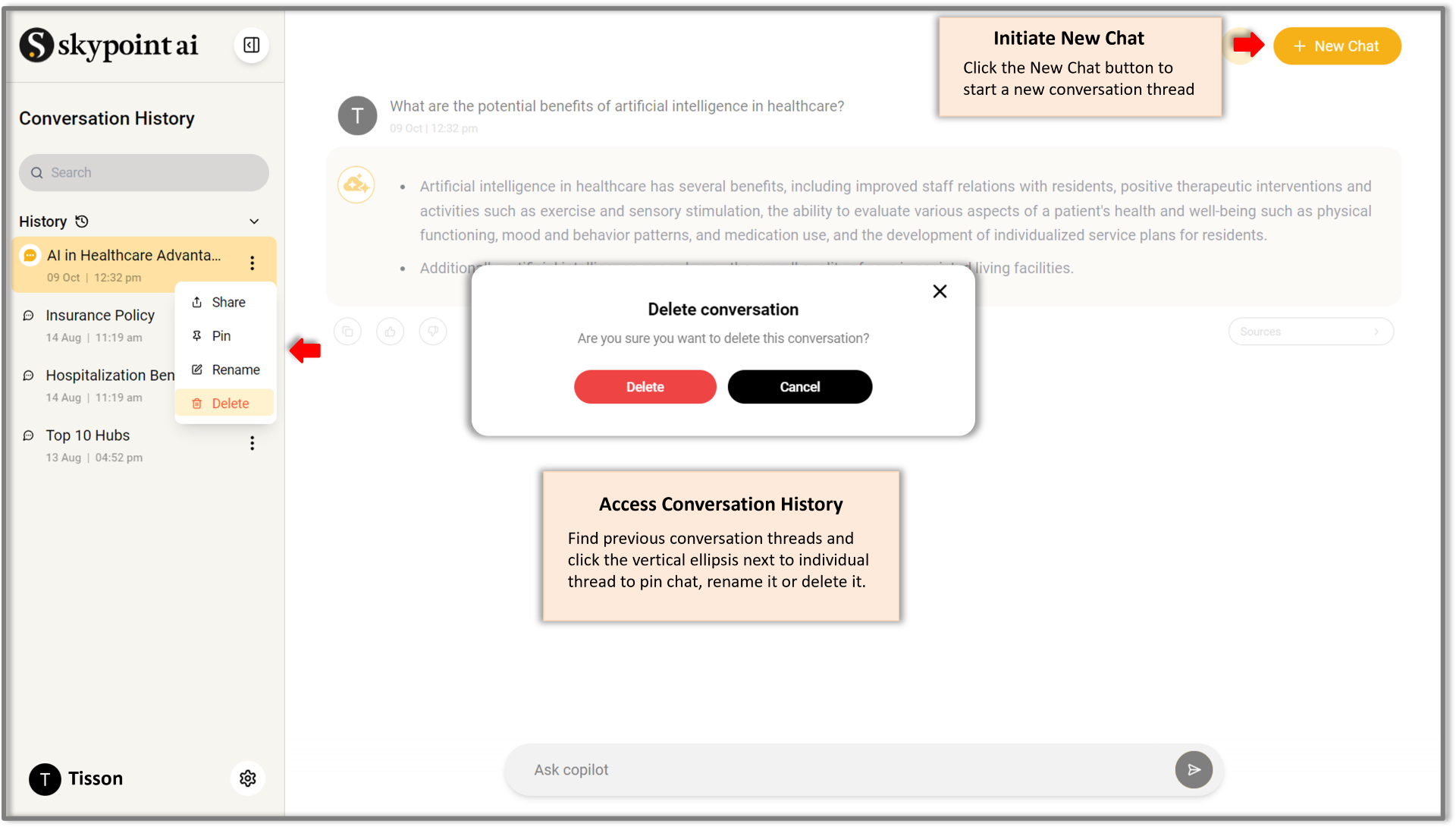
How to create a new chat and view past conversations?
How to use AI suggested follow-up questions for smoother interaction?
skyStudio Copilot helps you maintain a natural and productive conversation flow by automatically suggesting follow-up questions. These suggestions are context-aware and designed to build on your previous prompt, helping you dig deeper, clarify your intent, or explore related topics with ease.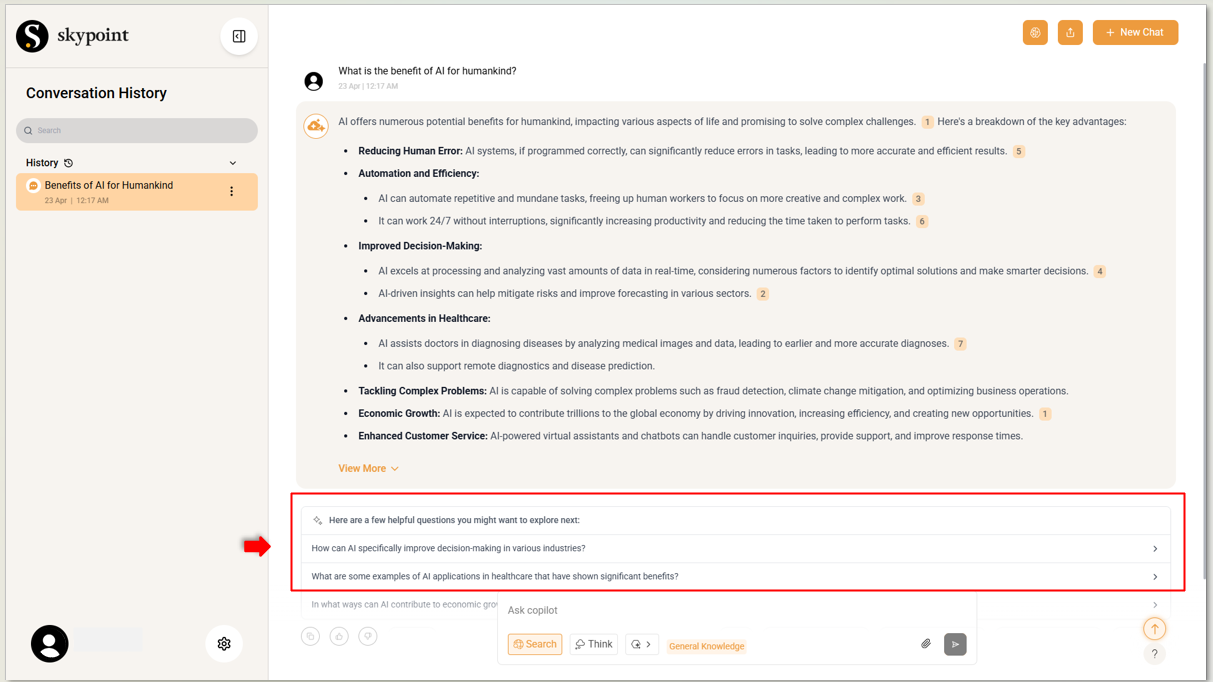
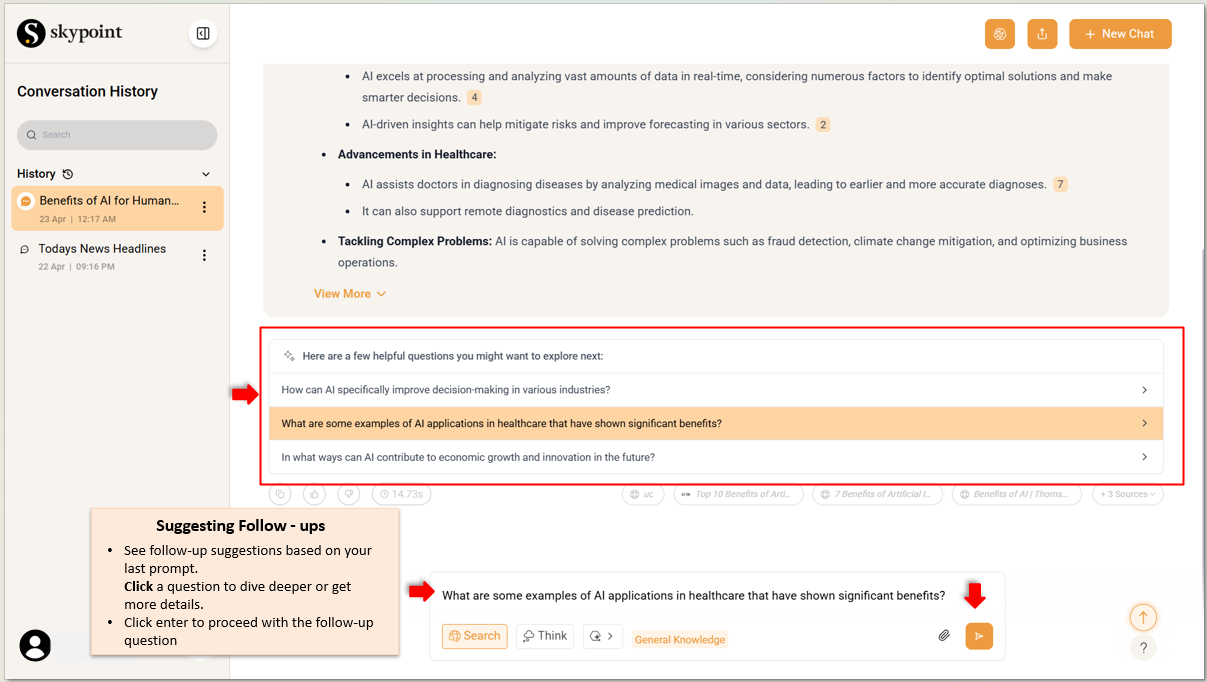
- The question is automatically populated in the input text box.
- You can edit the question to better fit your needs, or
- Just send it as-is to keep the dialogue flowing seamlessly.
Follow-up suggestions are currently available only when you’re using the General Knowledge agent.
How to use model picker for customizing responses in copilot?
skyStudio Copilot gives you greater control over your conversation experience with the Model Picker. It allows you to select the underlying language model best suited to your task, helping you tailor responses based on the complexity, creativity, or precision needed.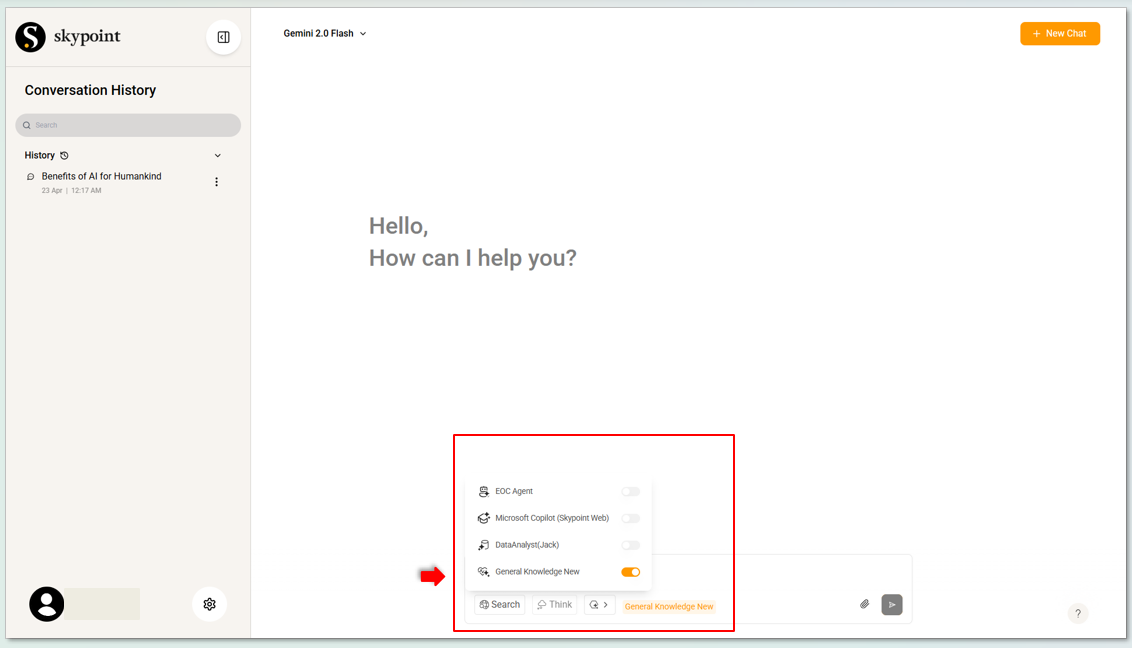
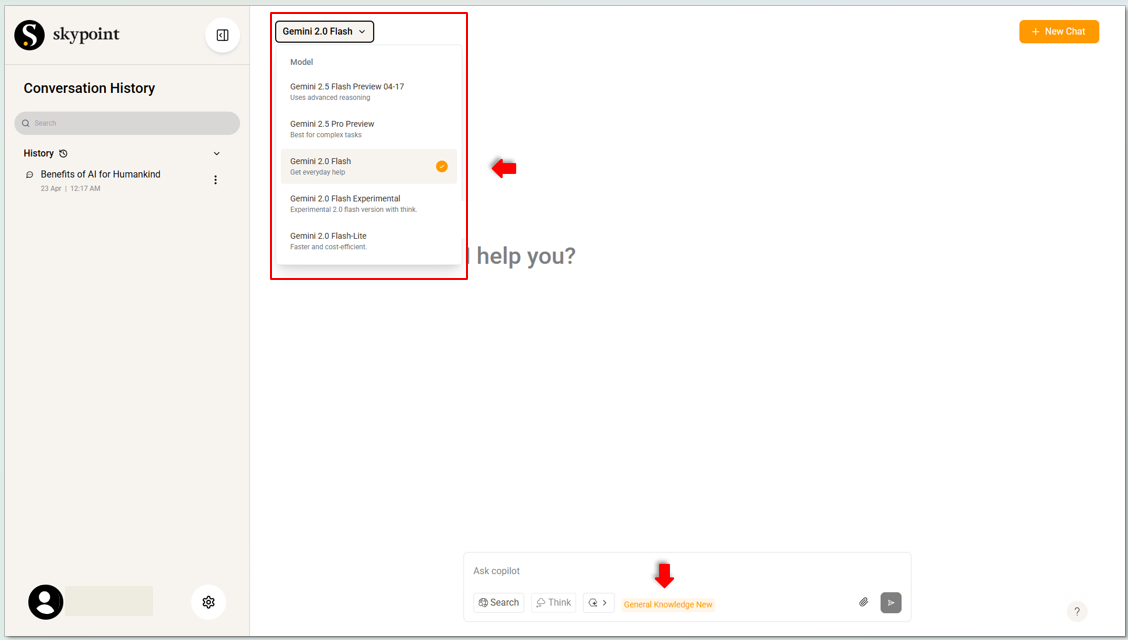
- You can select the model from the drop-down based on your current needs. Copilot will generate responses based on the capabilities and style of the selected model.
- You can switch models anytime during the conversation to adapt to evolving requirements.
The Model Picker drop-down will be enabled only when the General Knowledge agent is active, and no other agents are enabled alongside it.
How to Create a New Playbook and Set Up Automatic Prompt Execution?
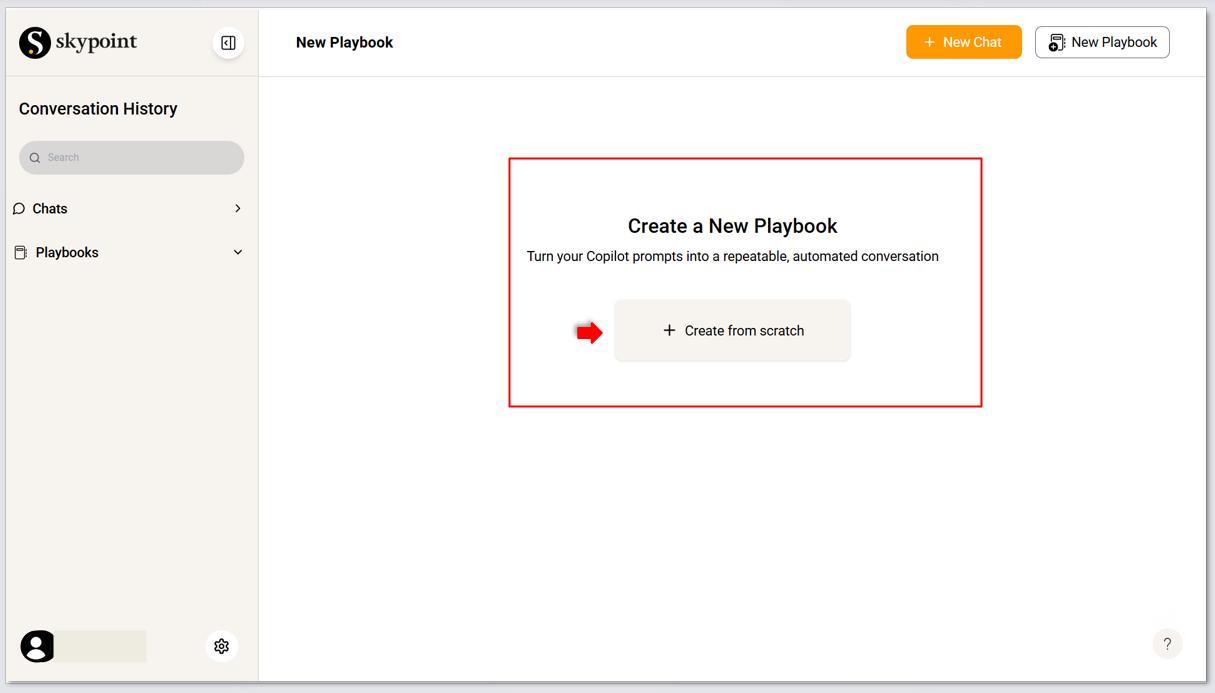
Create a Playbook in skyStudio to automate the execution of specific prompts at scheduled times or based on defined triggers. Once executed, the system automatically sends the Copilot response via email to the user. To Create and Set Up the Playbook and Automatic Prompt Execution, Follow the Steps Below.- Click on the New Playbook button in the top-right corner of the Copilot page.
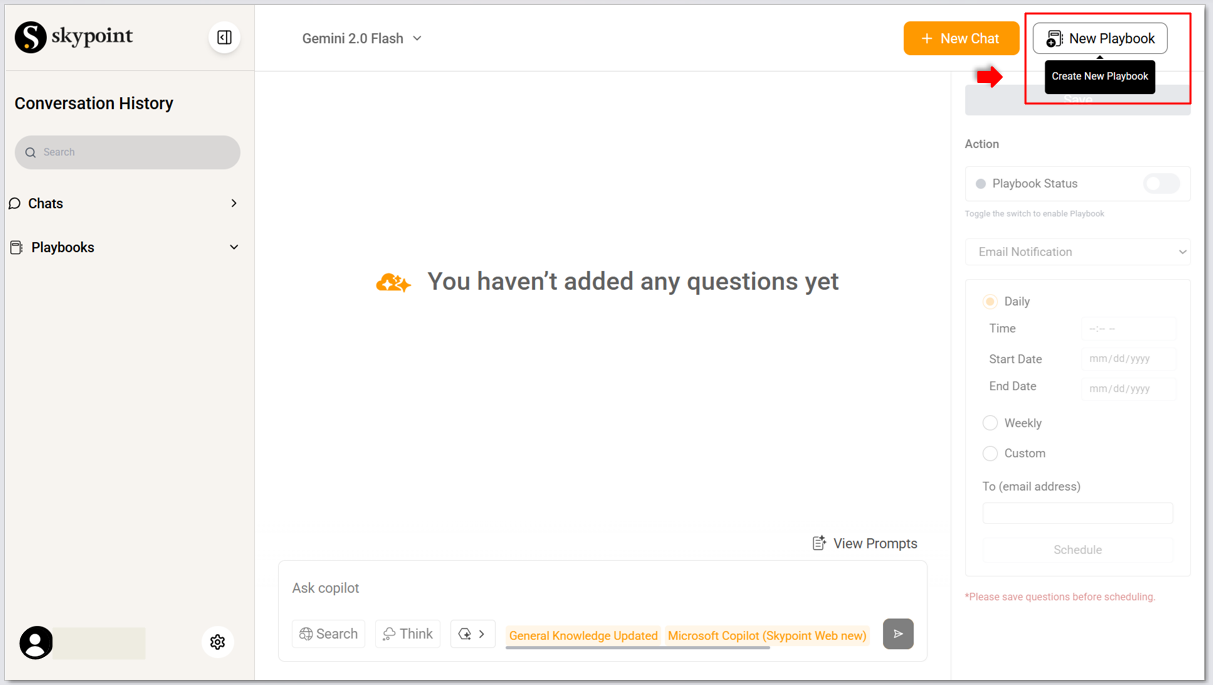
-
The Create New Playbook screen appears, Click on Create from Scratch.
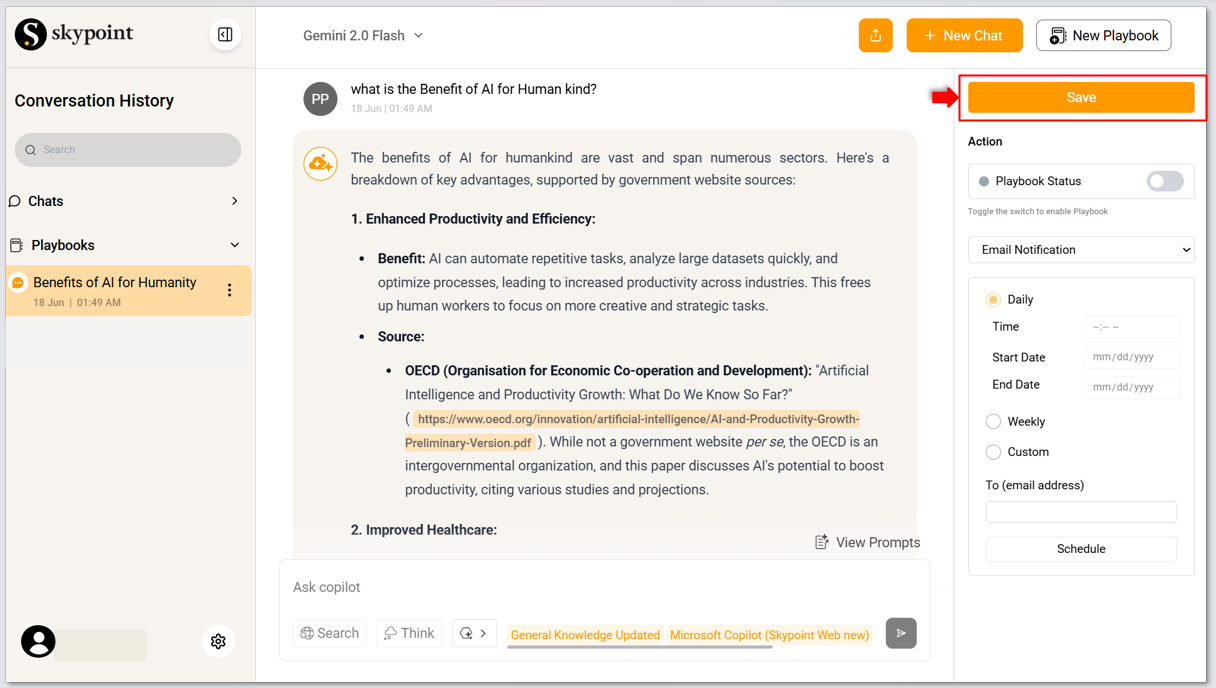
- The Copilot window appears, enter the prompts, and any follow-up prompts you want to automate. These will be added to the playbook.
- Click on Save to add the play book and proceed.
- Navigate to the Action tab where a scheduling form appears.
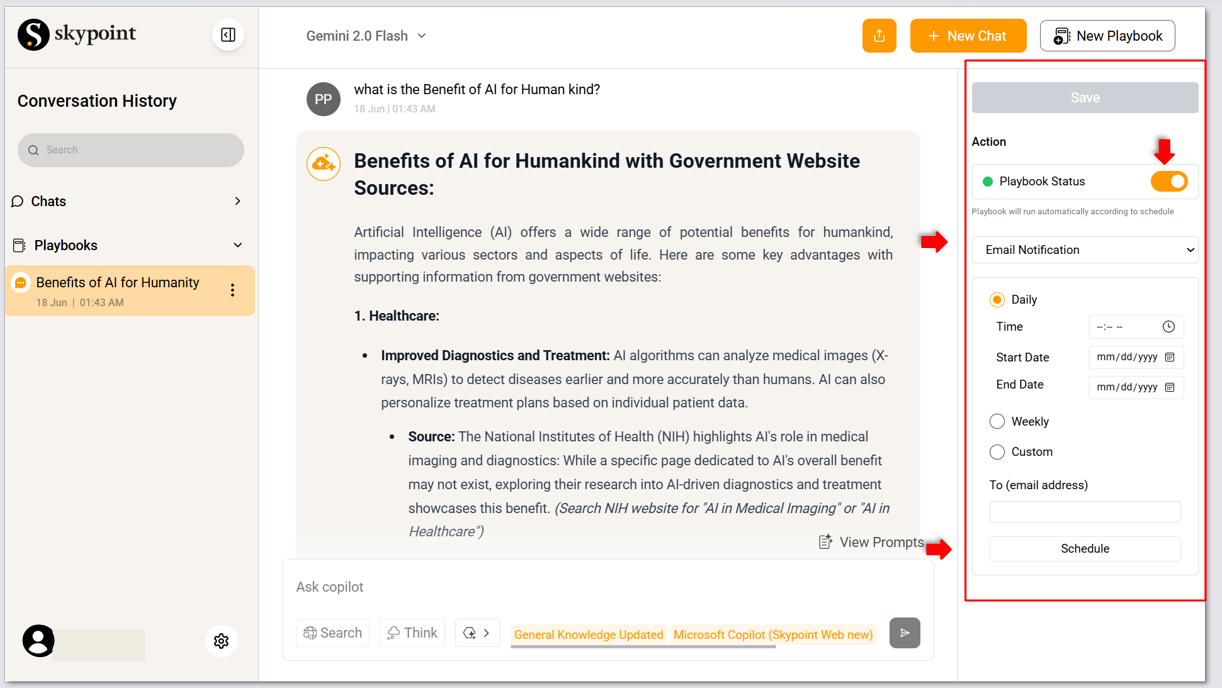
- Once the prompts are saved, enable the Playbook status button.
- Choose Daily, Weekly, or Custom based on when you want the prompts to run.
- Fill in the execution Time and specify how often it should repeat (e.g., every 2 days).
- Set the Start Date and End Date for the execution window.
- Select Email Notification from the dropdown to enable email delivery of the prompt response.
- Enter the user email id where the results should be sent after each execution.
- Click on Schedule to save and apply changes.
-
The user will receive an email notification each time the prompt is triggered.\
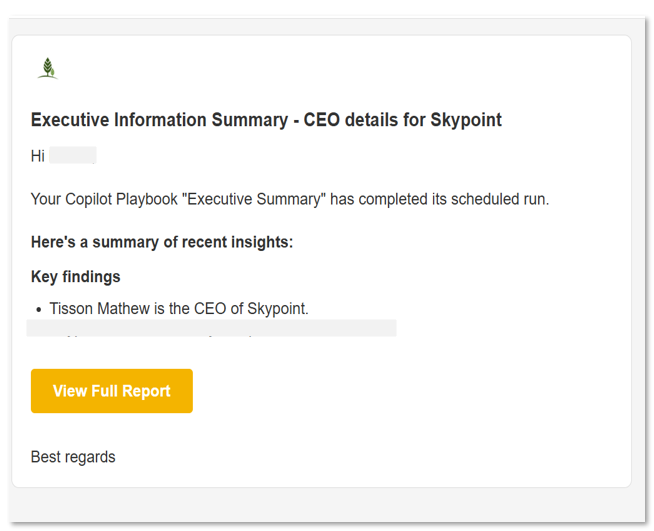
- Click on View Full Report to redirect to playbook run history.
-
You can view all created playbooks in the left panel of the Copilot interface.
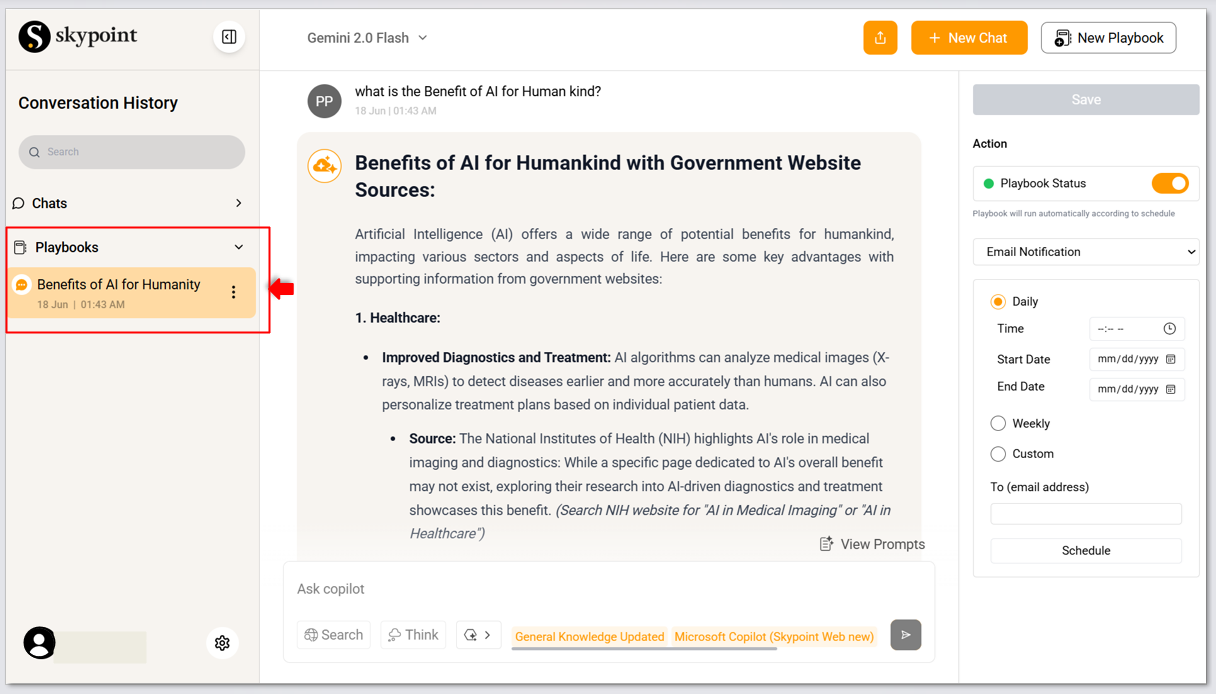
Once scheduled, your playbook will automatically run the configured prompts and email the results to the specified user.
How to Access Settings and logout securely in skyStudio Copilot
The Settings page in skyStudio Copilot allows you to personalize your Copilot experience and manage your account securely. From theme preferences to session control, it offers quick access to key customization options. To set up your skyStudio Copilot experience, follow these steps:- Click the gear icon located at the bottom-left corner of the Copilot interface.
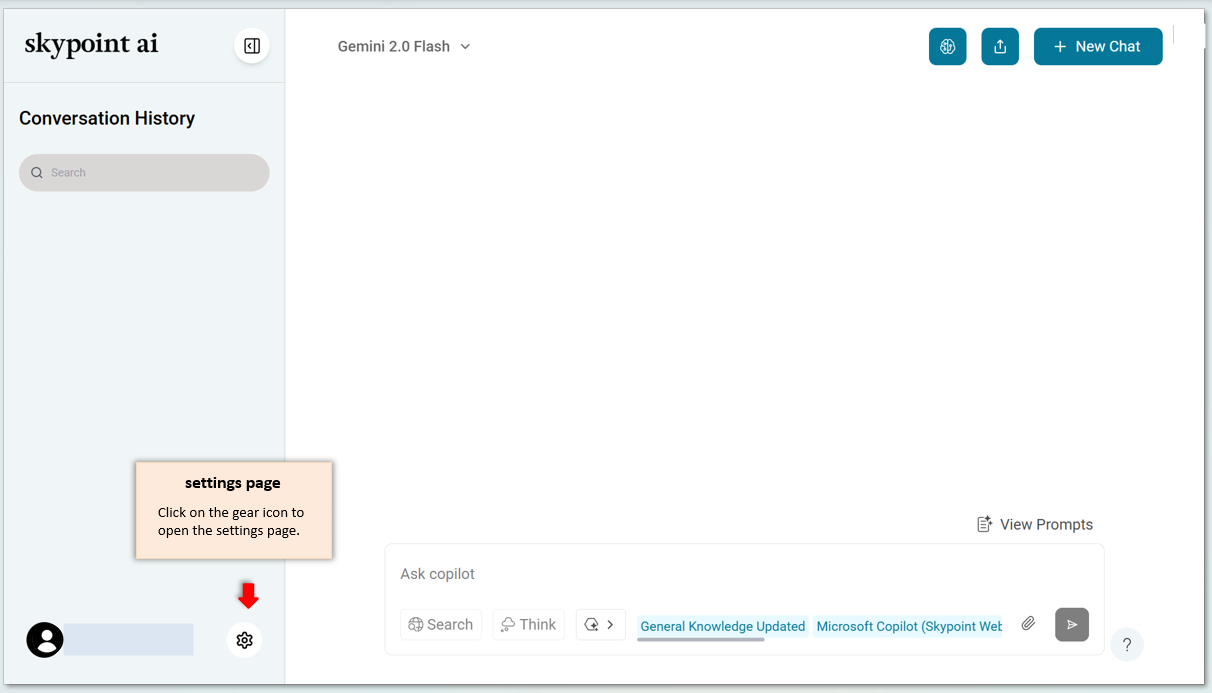
- You can see the tenant and instance names you have access to.
- Select Light or Dark mode from the dropdown to change the interface appearance.
- Select the language from the drop-down menu.

- To log off, click on Sign Out.
skyStudio Copilot is an easy and effective tool for seeking advice on various topics. You can ask questions and get reliable answers from the system. If you experience any technical problems or errors, contact the Skypoint support team for help.